Enabling Induction Module Firmware Update
Firmware Firmware v116 or above allows the Bullet R2/R2 Pro to update the Induction Module firmware.
Previously, updates were limited to the Control Module. The ability to update the Induction Module firmware enables us to further enhance performance and enables future feature expansions.
Process Overview
-
Update the Control Module to
Firmware v116 or abovefirst. -
Update the Induction Module to Firmware v28.
The Control Module Firmware v116 or above will be referred to as C FW 116 below
The Induction Module Firmware v28 will be referred to I FW 28 below
Please perform the Firmware Update steps ONLY when the Bullet is cold. NEVER turn the Bullet off during the Firmware Update process.
Step 1: Downloading the firmware
Find available versions here R2 firmware files.
Step 2: Updating the Firmware
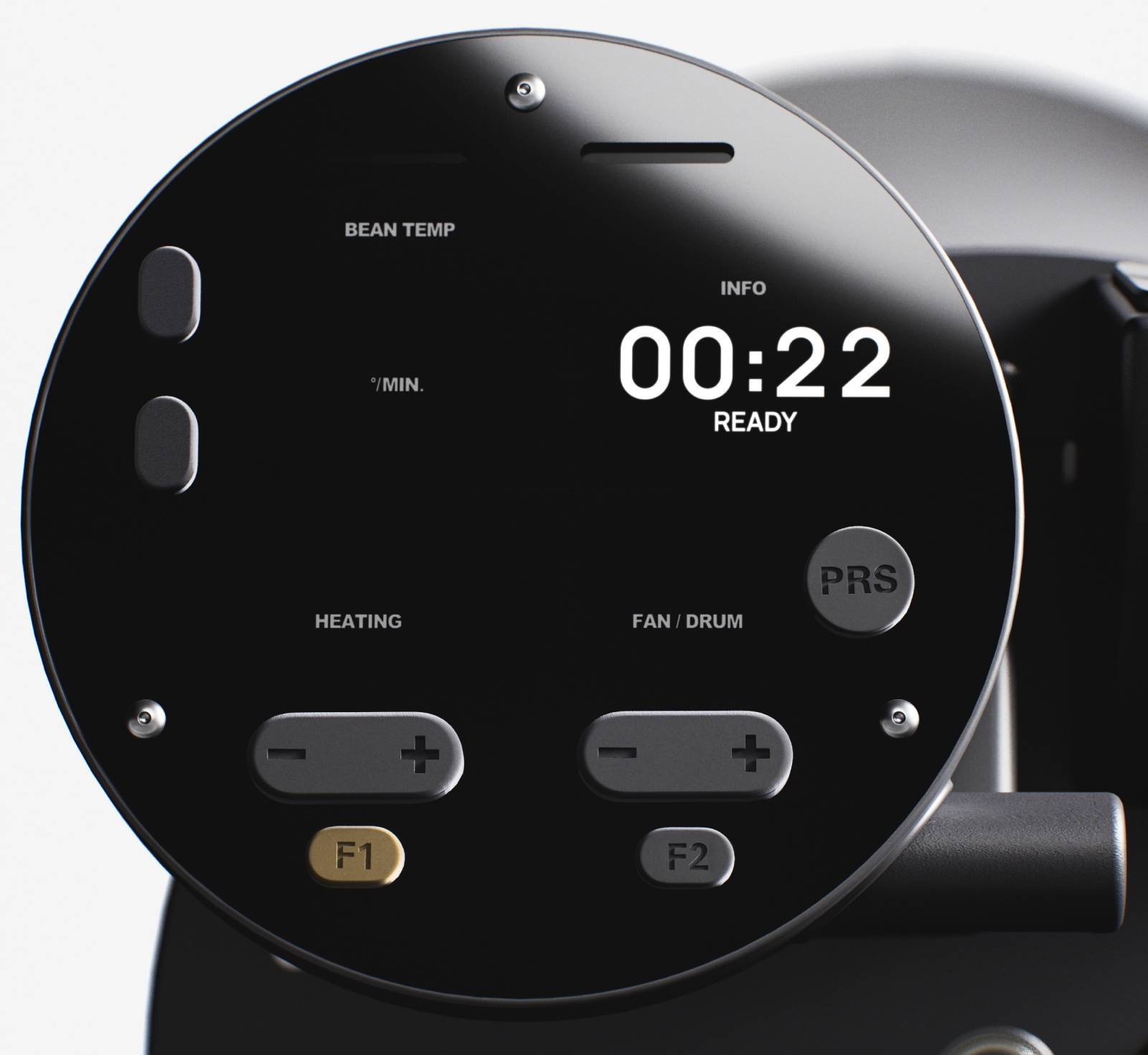
1. Start the R2. Make sure the R2 is in Ready Mode.
2. Press F1 to access the Menu.
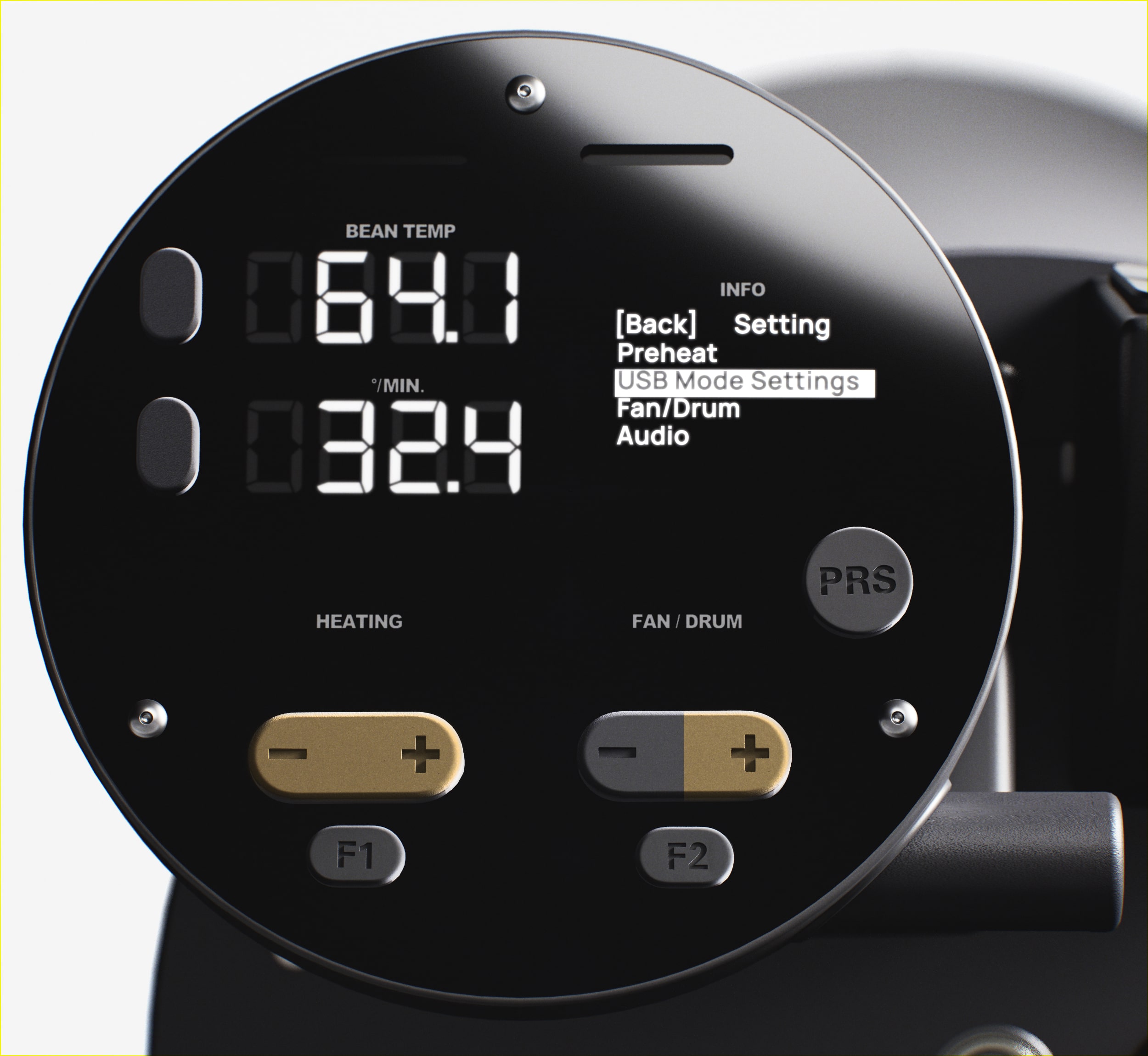
3. Press the Heating +/- Buttons to navigate to the USB Mode tab. Press the Fan/Drum + Button to enter the USB Mode Settings.
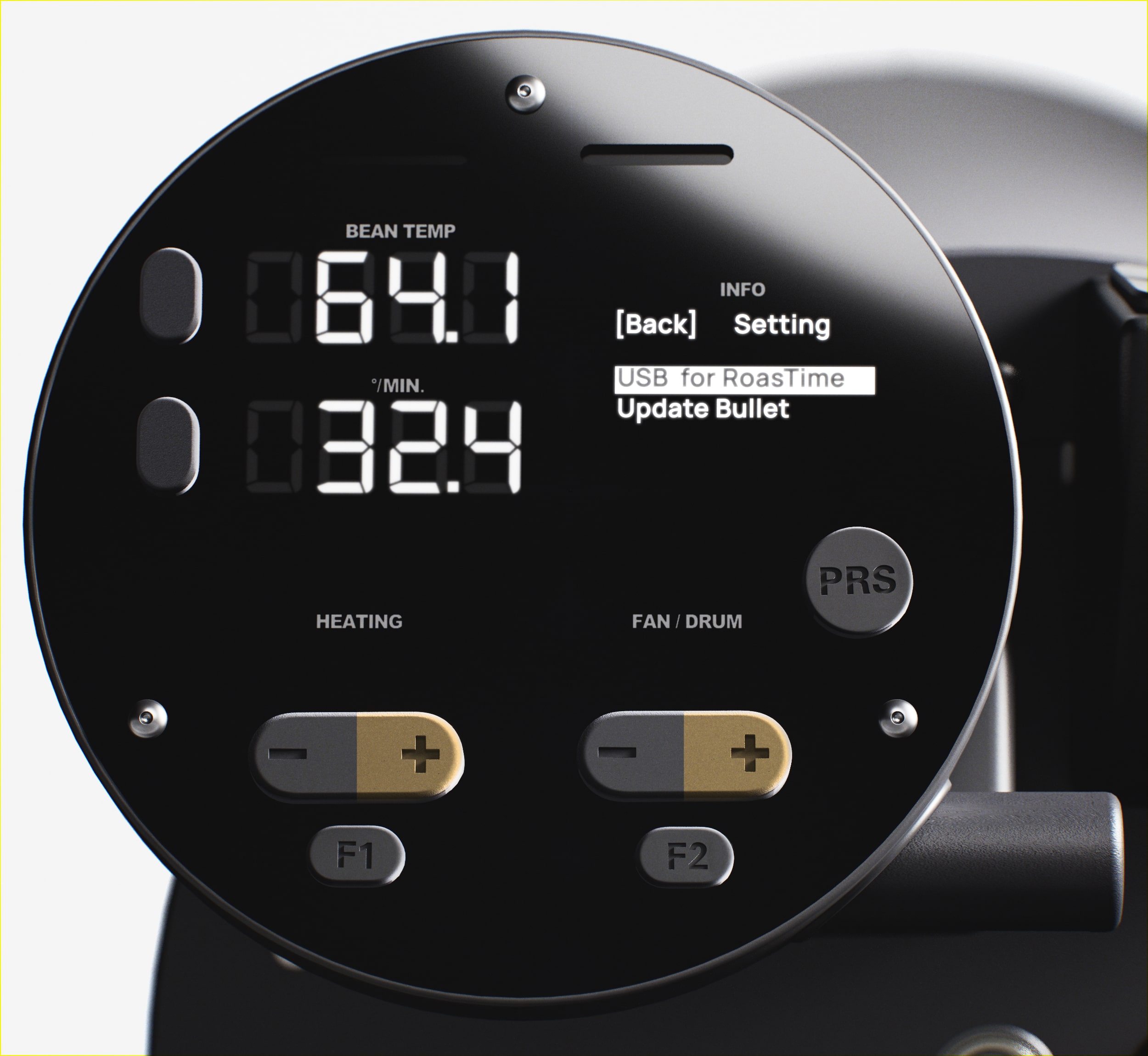
4. On the USB for RoasTime tab, press the Fan/Drum + Button. The text will change to USB for SD Card.
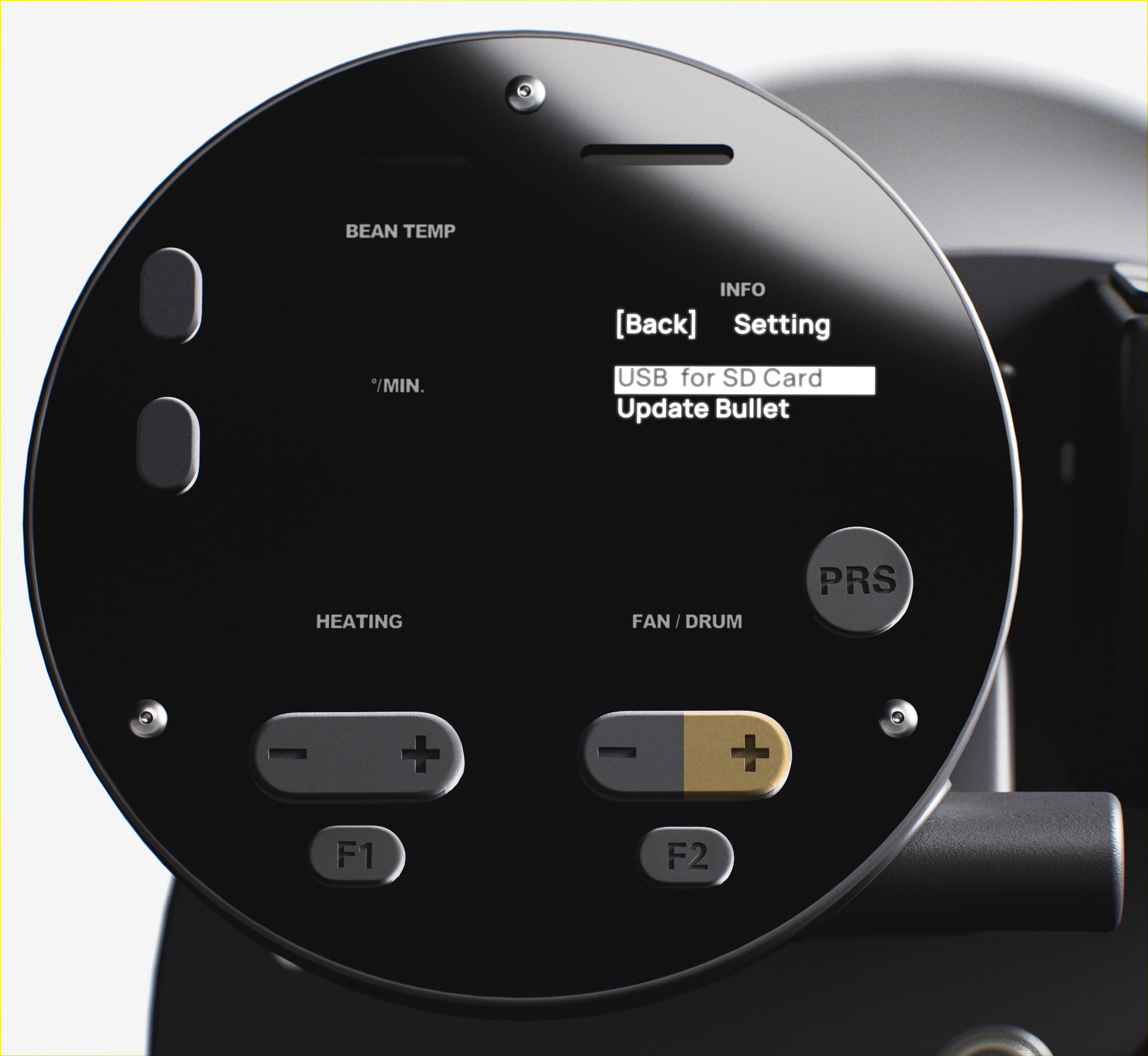
5. Connect the R2 to the computer.
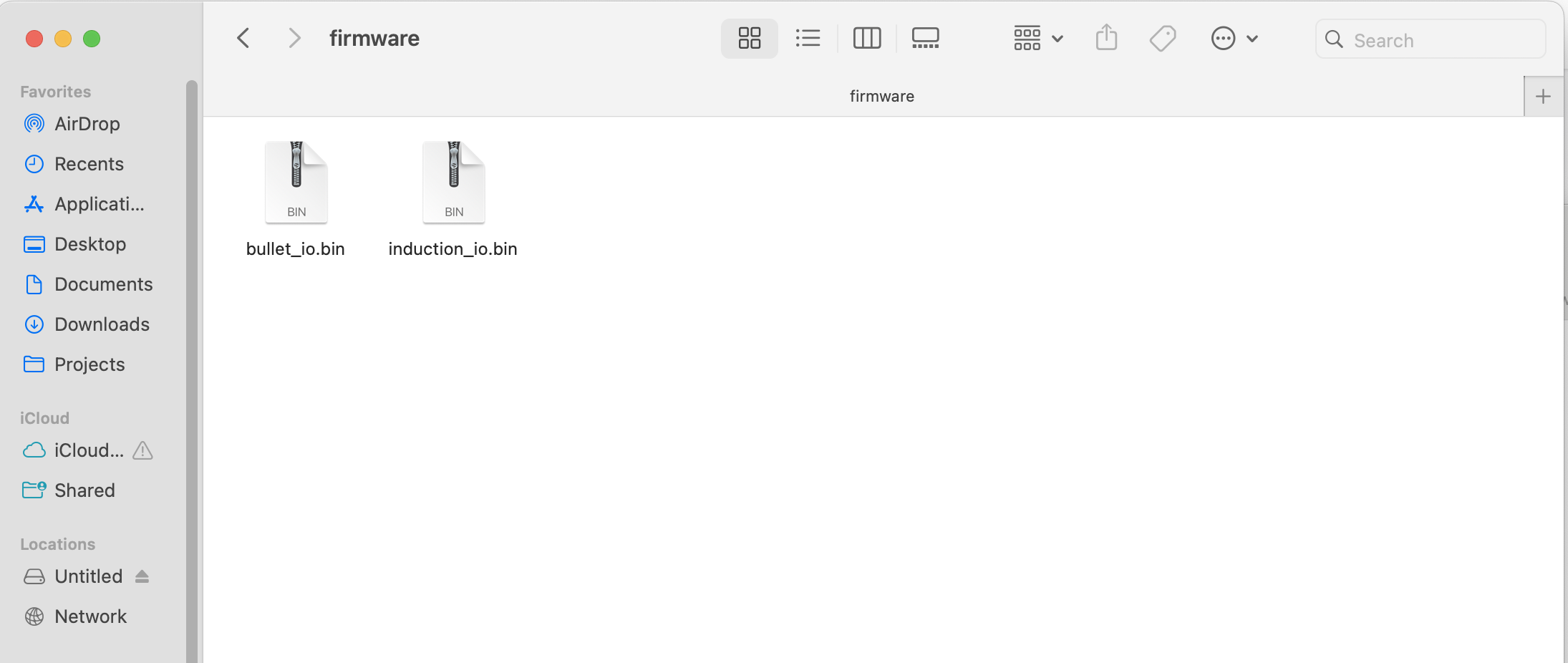
You will see a new drive appear on your computer when the R2 is connected in USB Mode. The drive will contain a folder named Firmware with a file named bullet_io.bin. Copy the downloaded bullet_io.bin and induction_io.bin into the firmware folder, replacing the existing file.
Verify the downloaded firmware file is named bullet_io.bin before copying it to the SD card. Do not copy other files into the firmware folder. See the images below.
If you've downloaded multiple copies, the file might be named bullet_io (1).bin or similar. Please rename the file to bullet_io.bin before proceeding.
The drive should show up in Windows Explorer / Finder. If the window does not appear, reconnect the USB Cable. Copy both files bullet_io.bin & induction_io.bin to the Firmware folder. Make sure to overwrite the old files and do not allow the computer to rename the files.
Connected R2 drive example on MacOS 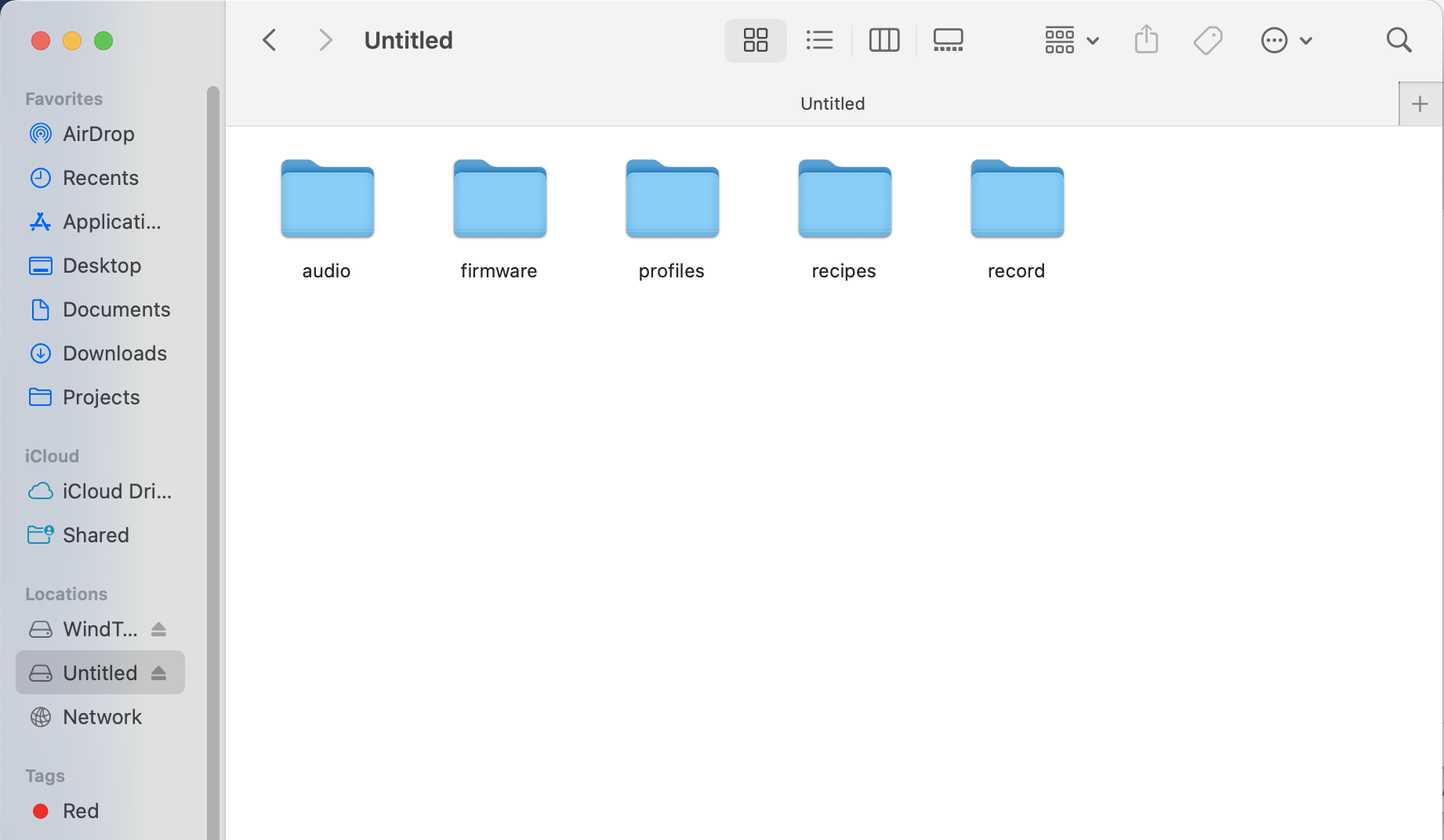 R2 firmware folder contents on MacOS.
  Replace
 bullet_io.bin with the new firmware file you downloaded. 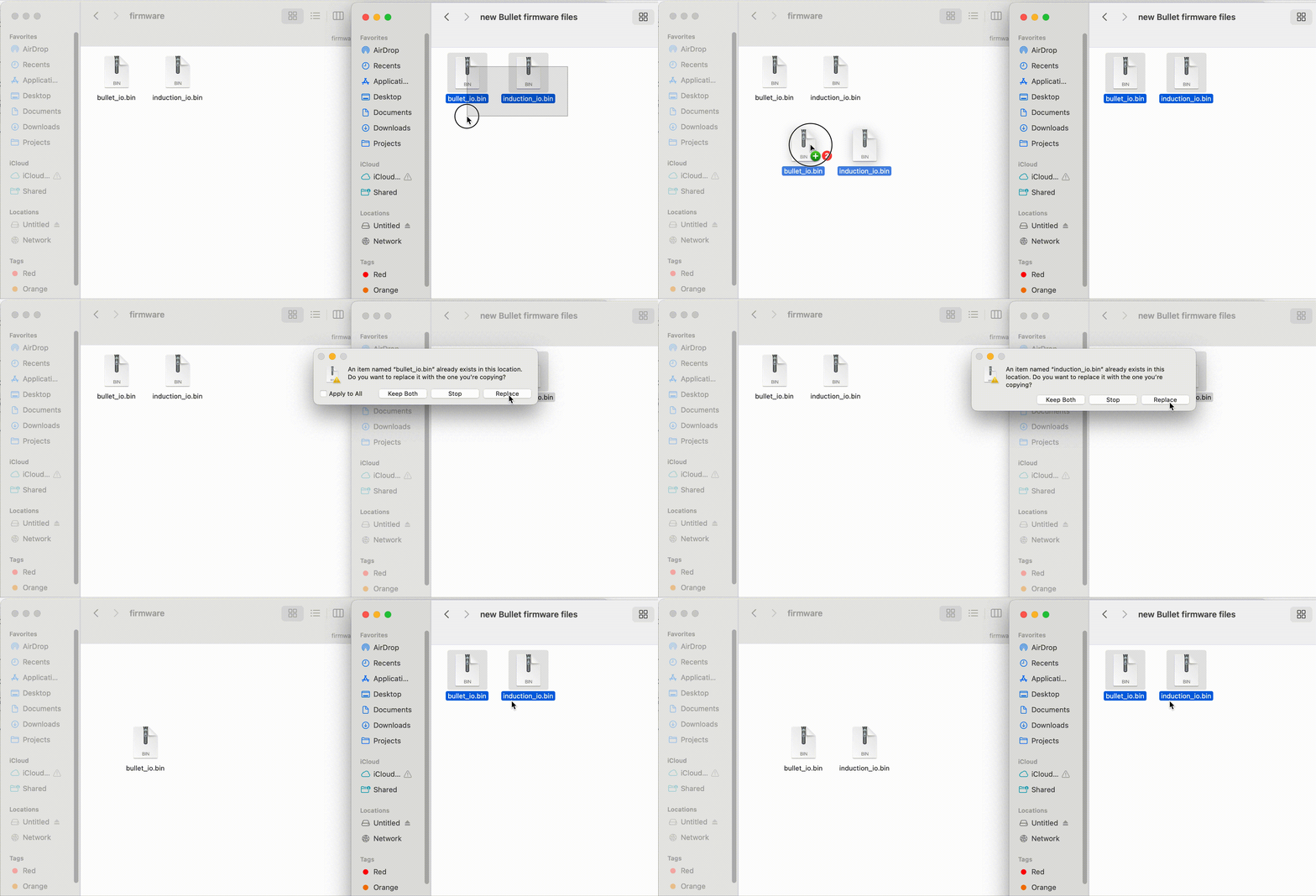
Connected R2 drive in Windows Explorer 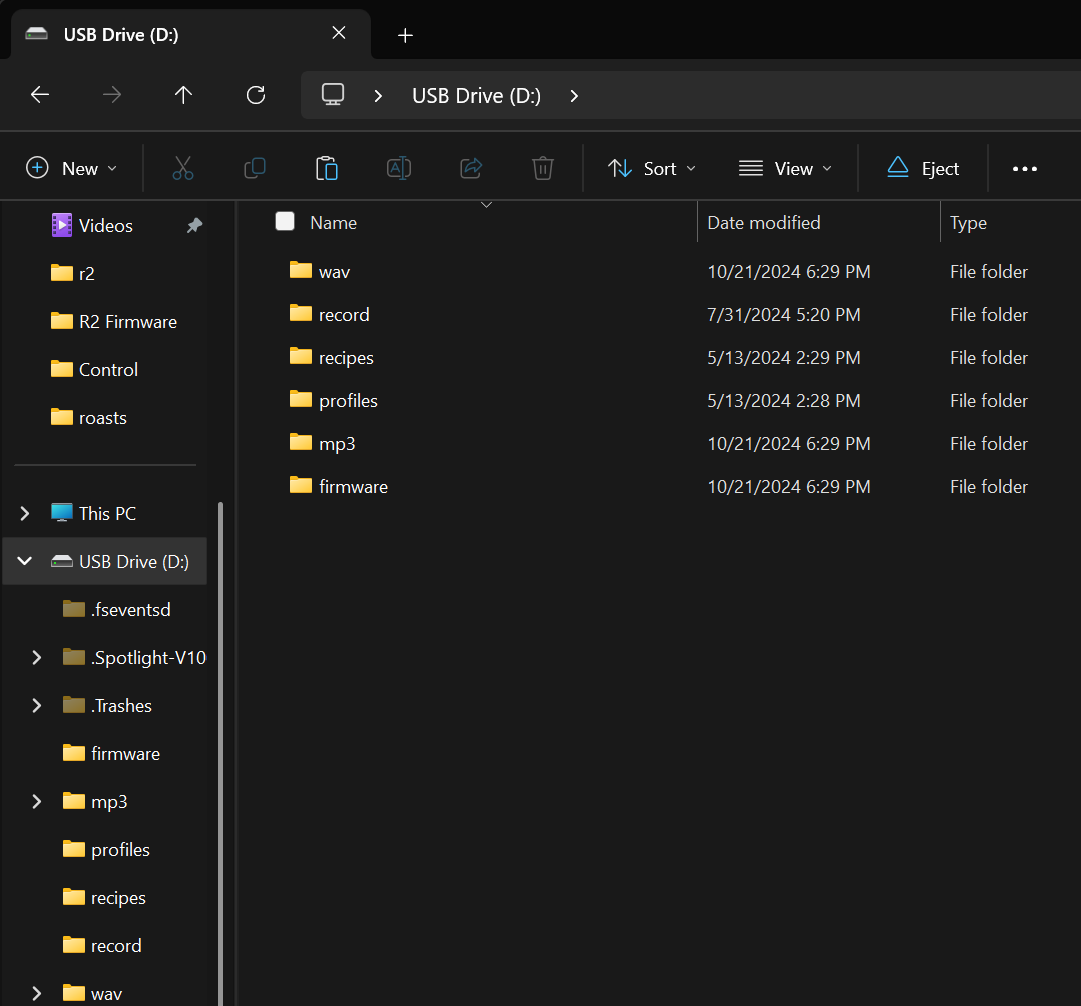 R2 firmware folder contents in Windows Explorer. Replace
 bullet_io.bin with the new firmware file you downloaded. 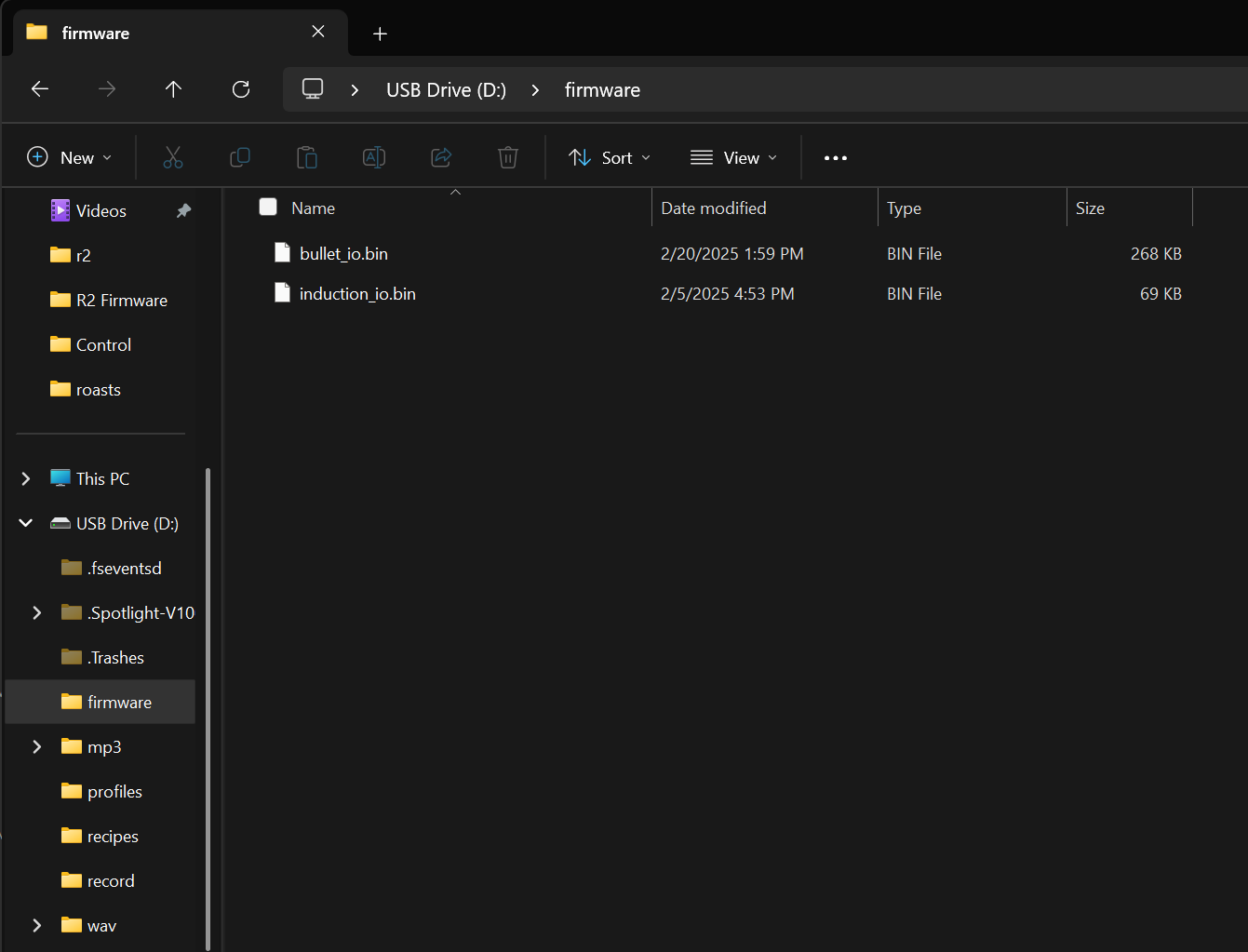
6. Press the Fan/Drum + Button to set the USB Mode back to USB for RoasTime.
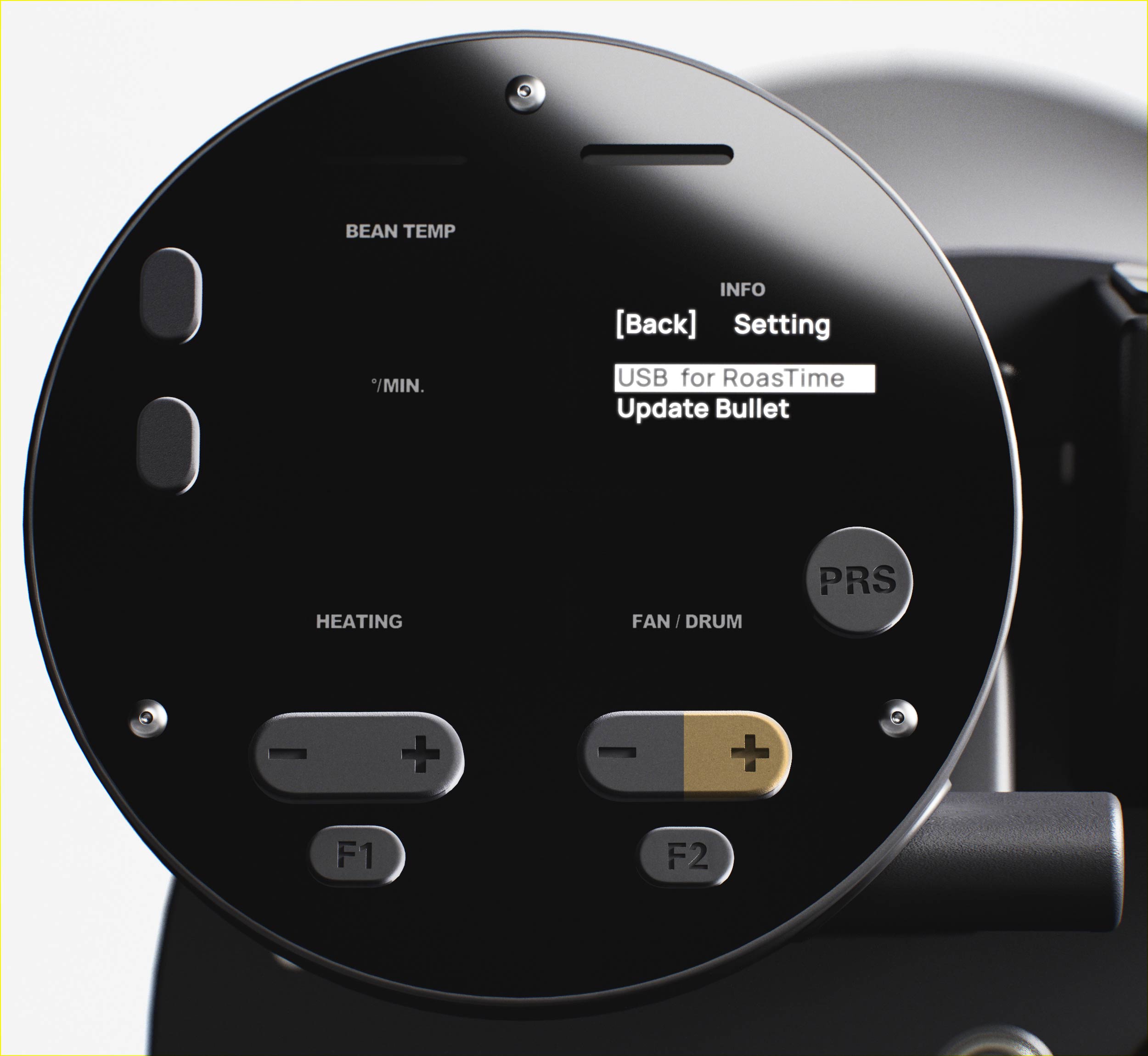
7. Press the Heating + Button to navigate to the FW Update tab. Press the Fan/Drum + Button. The screen will flash for a few seconds and then stop. The Firmware is now updated.
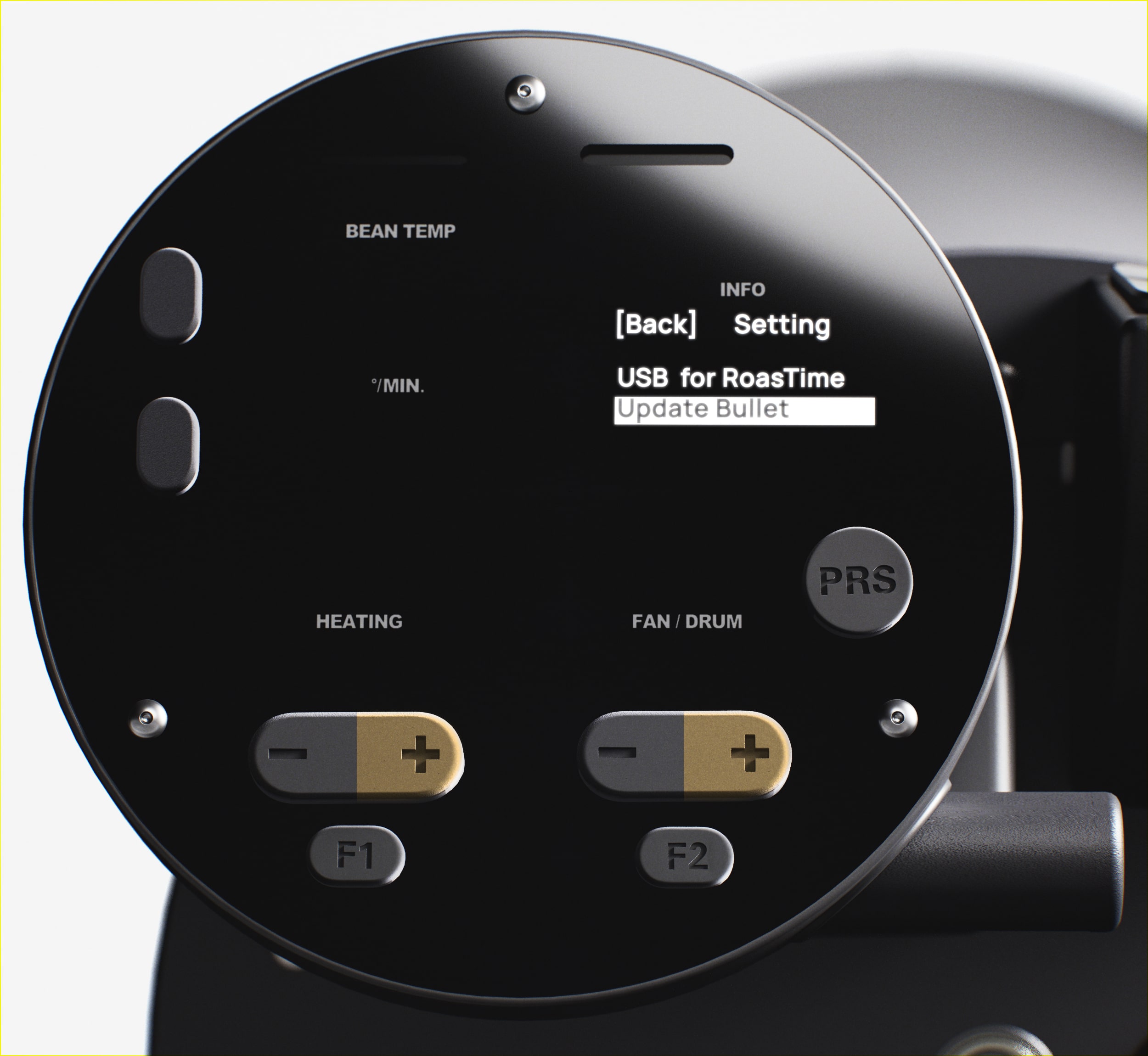
8. If the board does not restart, turn off the R2 and turn it back on.
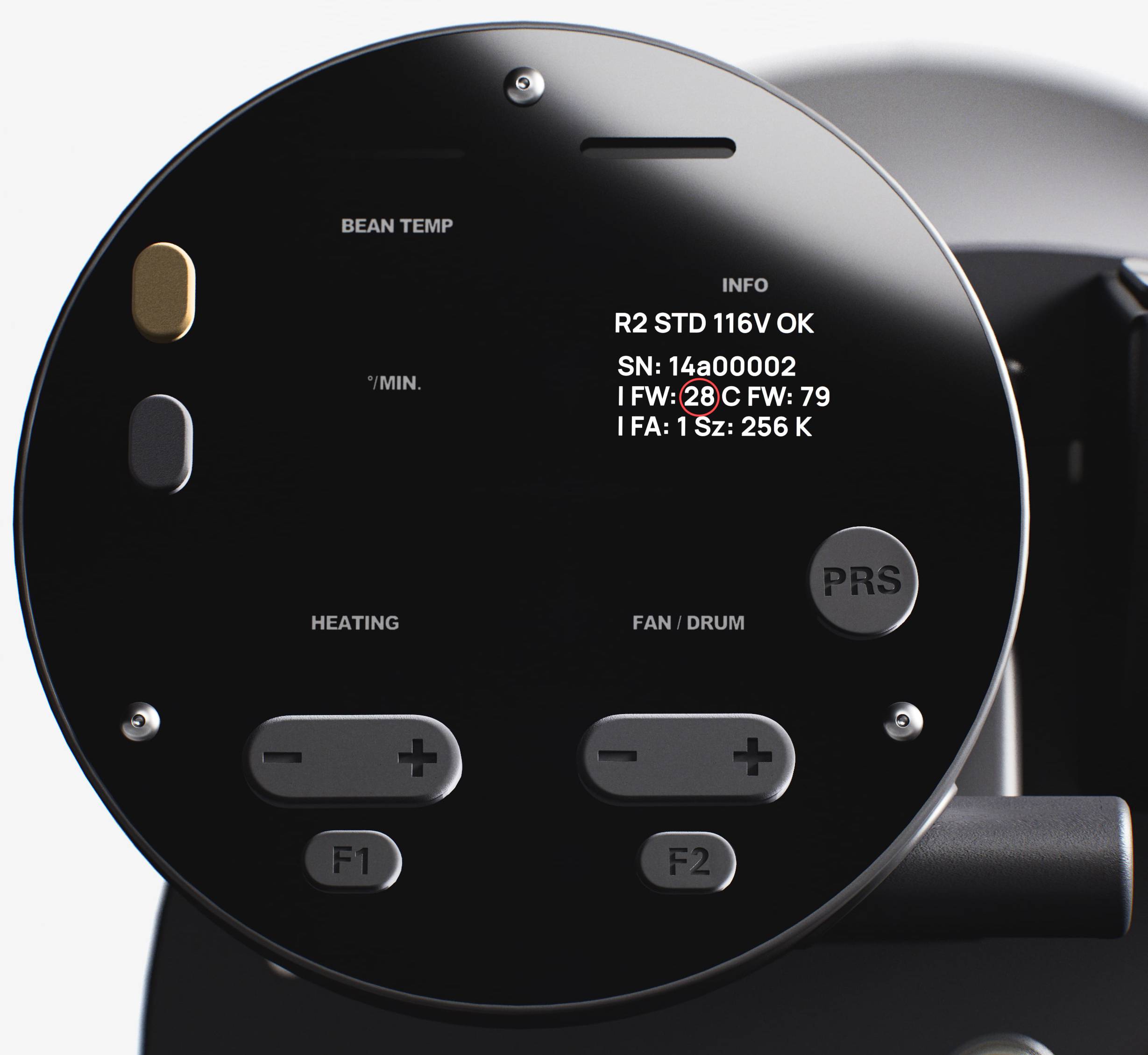
9. Press the Button A in Ready Mode to toggle different Info Display pages and check if the C FW Version has changed to C FW 79.
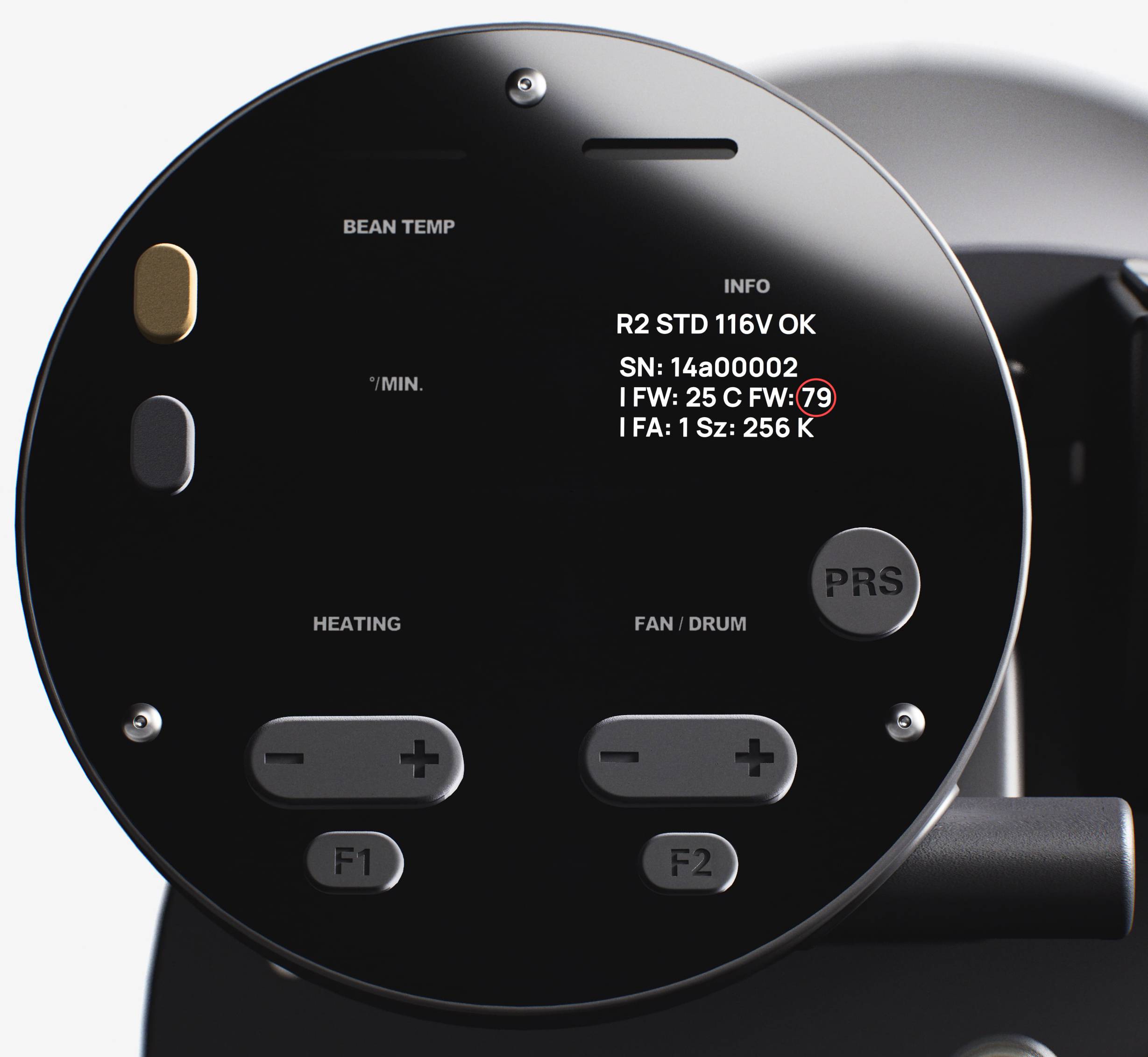
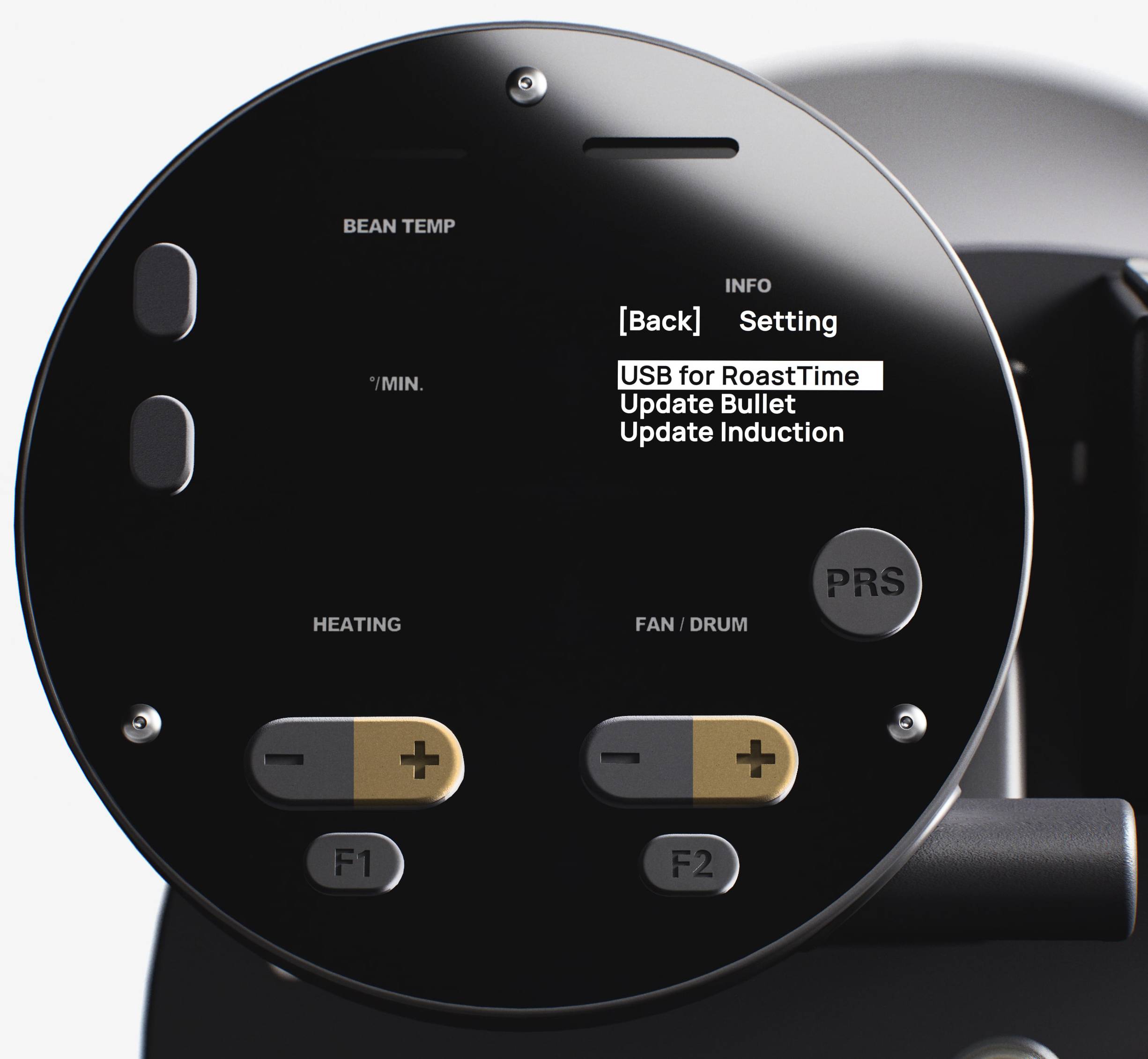
10. Press the Heating +/- Buttons to navigate to the USB Mode tab. Press the Fan/Drum + Button to enter the USB Mode Settings.
11. Press the Heating + Button to navigate to the Update Induction tab. Press the Fan/Drum + Button. The screen will flash for a few seconds and then stop. The Firmware is now updated.
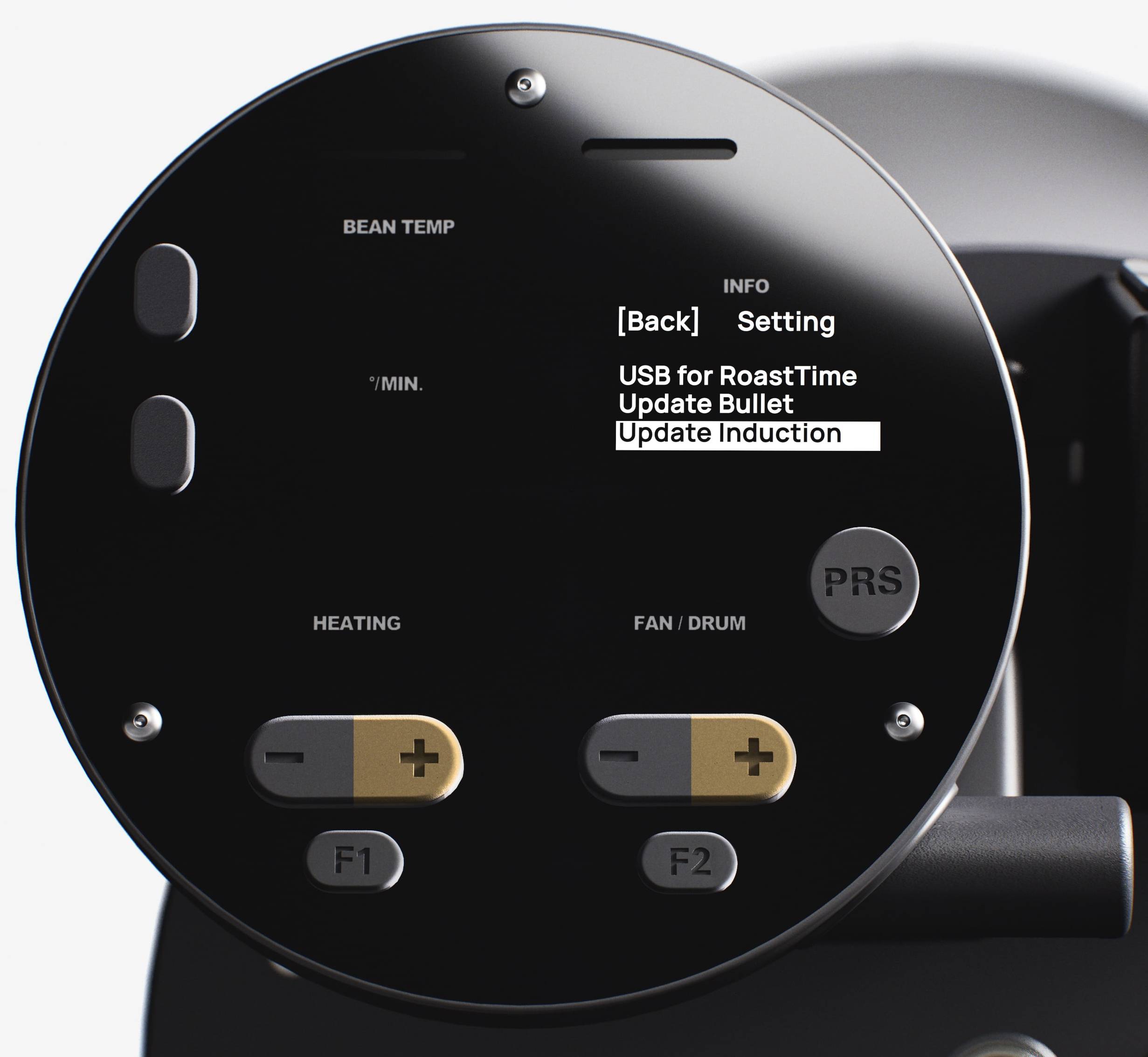
12. If the board does not restart, then turn off the R2 and turn it back on.
13. Press the Button A in Ready Mode to toggle different Info Display pages and check if the I FW Version has changed to I FW: 28.